Notifications
Configure how every alert reaches each user
Define Email, SMS, WhatsApp and On Screen notification channels, configure company-wide and personal preferences, send memos, and let users act directly from actionable notifications.
Notification center
Channels configured
Live business context
Define Email, SMS, WhatsApp and On Screen notification channels, configure company-wide and personal preferences, send memos, and let users act directly from actionable notifications.
Why it matters
Every notification type can use the channel that fits it.
Notifications in Ofisync is the central place where a company defines how communication should happen. Admins can configure notification types such as MFA, password reset, event reminders and action-required alerts, then decide which channels should be used. Users can also set personal preferences for how they receive specific notifications.
Give the company control over notification behavior without removing personal preference from users.
Let users receive the same type of alert through the channels that make sense for them.
Turn action-required notifications into direct entry points for completing the work.
Guided workflow
From setup to daily execution.
Define the channels
Start with the communication modes the company supports: Email, SMS, WhatsApp and On Screen notifications, with push notifications planned for the mobile app.
Configure notification types
Set how notifications such as MFA, reset password, event reminders and action-required alerts should be delivered at system level.
Personalize and act
Users can adjust how they receive specific notifications and use action buttons when a notification includes work they can complete directly.
Notification setup fit
Built around channels, types and user preferences.
A company may want MFA codes by SMS, reset password messages by email, event reminders on screen, workflow actions by WhatsApp and broad internal announcements as memos. The notification module lets the company define these patterns centrally while still allowing users to personalize how they receive specific alerts.
How Notifications works in practice.
Scenario 1
The company starts by defining notification channels
Notifications begin with the available delivery modules: Email, SMS, WhatsApp and On Screen Notification. These channels form the base options for how different notification types can reach users.
Scenario 2
Notification types are configured centrally
The company can define notification types such as MFA, reset password, event reminder and action-required notifications. Each type can have delivery rules that decide which channels should be used.
Scenario 3
System rules create the default behavior
At system level, admins can decide how important notifications should be sent. A security notification may use SMS, while an internal event reminder may use On Screen notification.
Scenario 4
Users can still personalize specific alerts
At personal level, users can specify how they want to receive specific notifications. This lets the organization keep standard behavior while giving users control over their own alert experience.
Scenario 5
Action buttons turn alerts into work surfaces
For notifications that have an associated action, the notification can include an action button. The user can respond directly from the notification instead of searching for the relevant module.
Scenario 6
Memos support direct internal communication
The memo function allows someone to send a notification to specified users or to all users. This makes broad announcements and targeted internal messages part of the same notification system.
Scenario 7
Module activity can produce targeted alerts
Events, workflow decisions, credential requests, billing changes and other system activity can create notifications when a user needs to know something or take action.
Scenario 8
Push notifications are planned for mobile
When the mobile application is completed, push notifications are planned as an additional delivery option so alerts can reach users outside the web workspace.
Notification scenarios
Where communication rules keep users reachable.
Notification scenario 1
Security and account notifications
MFA and reset password notifications can be configured through approved channels such as Email, SMS, WhatsApp or On Screen, depending on the company's rules.
Notification scenario 2
Personal notification preferences
A user can decide how they want to receive specific notification types, while still respecting the system-level channels the company has enabled.
Notification scenario 3
Memo broadcasts
A memo can be sent to selected users or all users, making internal announcements possible from the same notification module.
Inside the notification center
A central place to define how alerts are sent.
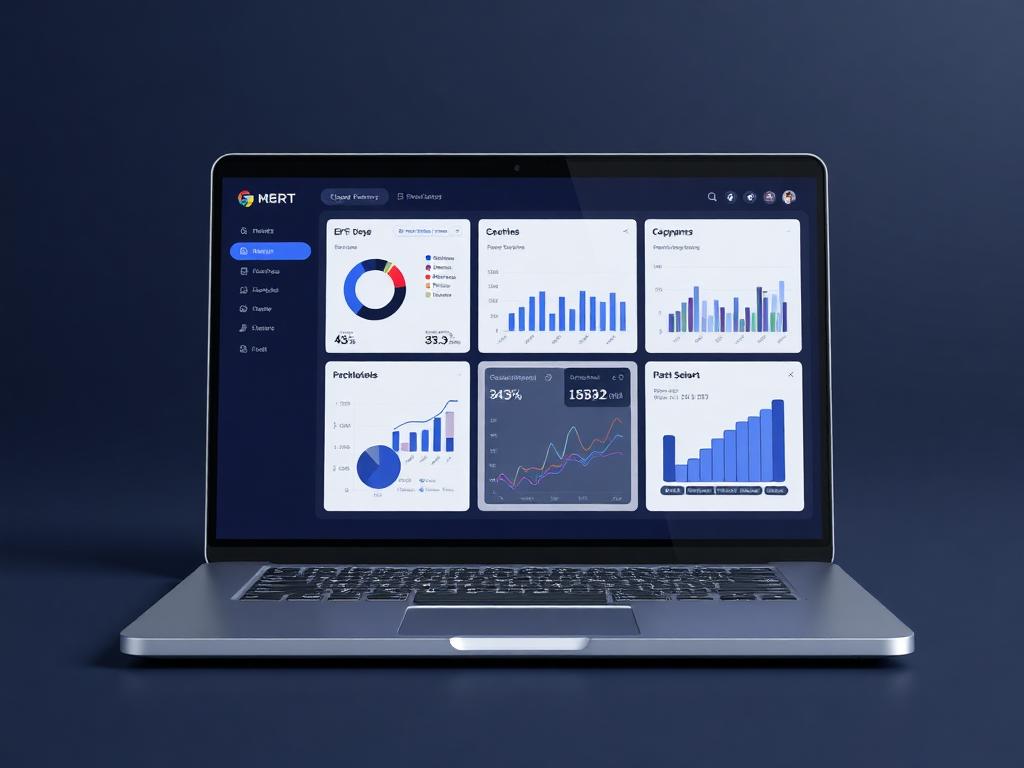
The notification center brings Email, SMS, WhatsApp, On Screen alerts, notification types, system rules, personal preferences, memos, action buttons and planned mobile push delivery into one configurable workspace.
Admins
Notification channels, system-level delivery rules, notification types and memo configuration
Users
Personal notification preferences, on-screen alerts, action buttons and received memos
Managers
Action-required notifications, team announcements, event reminders and workflow-related alerts
Notification records
What defines each notification setup
Delivery movement
Actions Ofisync can prepare when notifications are sent
Notification view
Channel configuration
Review which notification types are allowed to use Email, SMS, WhatsApp, On Screen and future push delivery.
Notification view
Personal preferences
See how a user has chosen to receive specific notifications where personal configuration is allowed.
Notification view
Memo delivery
Track memos sent to selected users or all users, including whether they were delivered as on-screen notifications or through other configured channels.
Connected notification modules
Modules that can create user alerts.
Workflow Automation
Create entity-specific workflows with titles, descriptions, start and end states, stages, decisions, assigned users, notifications, graphical editing, duplication and disabling.
Events & Calendar
Manage access-scoped company events and personal schedules with daily, weekly, monthly, annual and detail views, themed event types, entity links, reminders, recurrence and RSVPs.
Digital Credentials
Sign or stamp PDF, DOC and DOCX documents directly, or send secure signing and stamping requests to recipients with placeholders, access codes, signing order, tags and audit tracking.
Ready to see it live?
Walk through Notifications with an Ofisync specialist.
We will map the demo around your business workflow, show the connected modules and help you identify the fastest path to rollout.