Contacts CRM
Relationship activity before and beyond the client record
Manage contacts, leads and relationship activity with entity links, tags, notes, events, follow-ups, saved views and CRM context connected to the rest of the workspace.
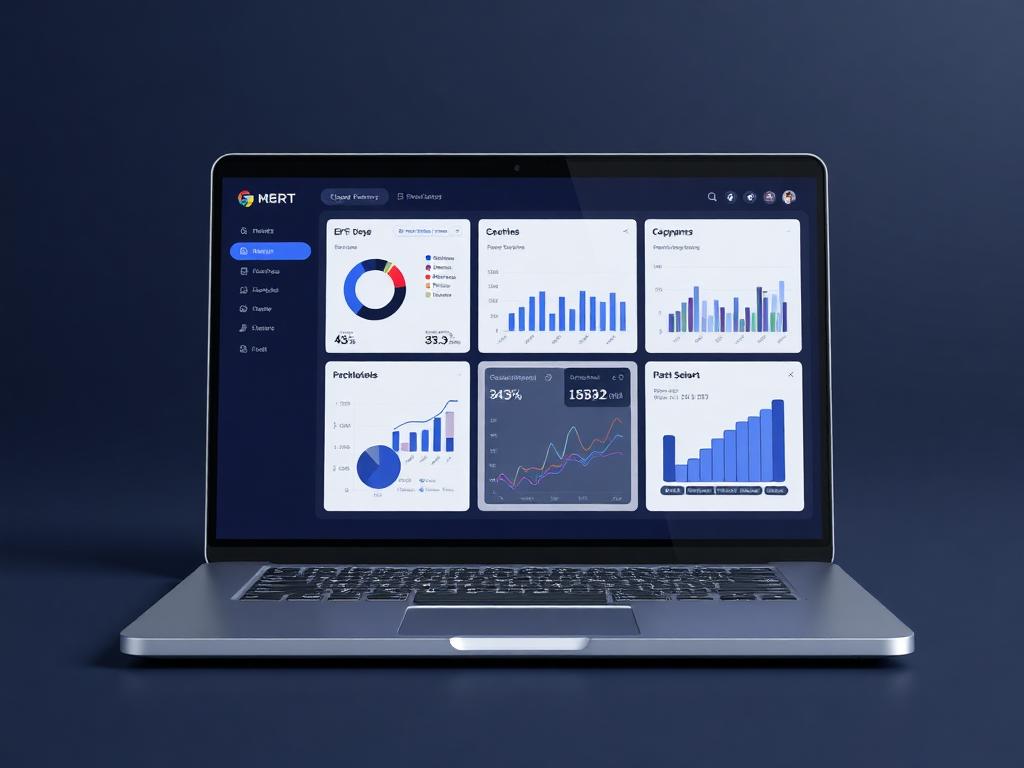
CRM pipeline
Follow-up ready
Live business context
Manage contacts, leads and relationship activity with entity links, tags, notes, events, follow-ups, saved views and CRM context connected to the rest of the workspace.
Why it matters
Every relationship keeps its notes, events and entity context.
Contacts CRM in Ofisync gives every important relationship a place to live before it becomes a client, supplier, partner, project contact or other entity connection. Teams can tag contacts, attach notes, schedule events, track follow-ups and connect the relationship to the entities it affects.
Give teams one relationship workspace for contacts that do not always start as clients.
Keep notes, events, tags and follow-ups attached to the right person or organization.
Connect CRM activity to the entities that matter, including clients, suppliers, projects and files.
Guided workflow
From setup to daily execution.
Create the contact context
Add the contact, classify it with tags and custom fields, then connect it to the relevant entity or relationship category.
Record activity
Capture notes, attachments, events, follow-ups and relationship history so the team understands what has happened and what should happen next.
Use the CRM view
Filter contacts by tags, saved views, relationship type or linked entity, then use that context for sales, procurement, partnerships or operations.
CRM relationship fit
Built around people, organizations and the entities they touch.
A person may start as a lead, a supplier contact, a partner, a project contact or an internal relationship tied to another entity. The team still needs notes, events, tags, follow-ups and activity history before the relationship becomes operational.
How Contacts CRM works in practice.
Scenario 1
The contact starts as a relationship, not just a name
A user creates a contact and classifies the relationship. The contact may represent a lead, supplier contact, partner, project contact, internal contact or another person connected to the business.
Scenario 2
Entity links place the contact in context
The contact can be associated with entities such as clients, suppliers, projects, files, users or other configured records. This keeps the relationship connected to the business area it affects.
Scenario 3
Tags and fields make the CRM list usable
Users can add tags and custom fields to describe the contact. Tags can support grouping by source, priority, campaign, relationship type, department or any structure the team uses.
Scenario 4
Notes preserve the conversation trail
A contact can have notes that combine comments and attachments. This lets users capture conversations, decisions, supporting documents and relationship context without scattering that information elsewhere.
Scenario 5
Events turn follow-up into scheduled work
Users can associate events with the contact for meetings, reminders, follow-ups or relationship activity. The event gives the CRM record a clear next moment instead of relying on memory.
Scenario 6
Saved views help each team work its own list
Sales, procurement, partnerships and operations can create or use saved views so each team sees the contacts that matter to its work.
Scenario 7
CRM activity can lead into other modules
When the relationship matures, the contact can connect naturally to clients, projects, files, suppliers, billing or other entities while retaining the earlier CRM activity.
Scenario 8
Search and segmentation keep the CRM clean
As contacts grow, users can find and filter records by tags, relationship type, saved view, linked entity and available contact fields.
CRM scenarios
Where relationship context becomes useful fast.
CRM scenario 1
Lead relationship tracking
A sales user can tag a lead, add notes, schedule events and keep follow-up history before the contact becomes a client.
CRM scenario 2
Entity-linked contact history
A contact can be associated with a client, supplier, project, file, user or another entity, keeping relationship activity connected to the right business context.
CRM scenario 3
Tagged CRM segmentation
Teams can use tags, custom fields and saved views to group contacts by campaign, relationship type, priority, source or next action.
Inside the CRM workspace
A relationship view for contacts, activity and follow-up.
The CRM workspace keeps contacts, linked entities, notes, attachments, events, tags, saved views, follow-ups and relationship activity together so teams can understand each relationship without jumping between modules.
Sales
Leads, tags, notes, events, follow-ups and conversion context
Procurement
Supplier contacts, entity links, relationship notes and scheduled follow-ups
Partners
Partner contacts, activity history, tags, events and linked business context
CRM records
What stays attached to each relationship
Relationship movement
Actions Ofisync can prepare from CRM activity
CRM view
Relationship list
Review contacts by tag, relationship type, linked entity, source, saved view or next follow-up.
CRM view
CRM activity history
Follow notes, attachments, events and relationship activity attached to a contact.
CRM view
Entity connections
See which clients, suppliers, projects, files, users or other records are connected to each contact.
Connected CRM modules
Modules that add context to contact relationships.
Client Management
Create flexible client records with custom fields, workflows, access rules, documents, events, notes, audit logs, projects and billing context in one place.
Billing Suite
Create numbered billing documents with custom document types, entity ownership, automated addresses, templates, multi-currency values, workflows, notes, credentials and linked document progression.
Notifications
Define Email, SMS, WhatsApp and On Screen notification channels, configure company-wide and personal preferences, send memos, and let users act directly from actionable notifications.
Ready to see it live?
Walk through Contacts CRM with an Ofisync specialist.
We will map the demo around your business workflow, show the connected modules and help you identify the fastest path to rollout.